User Guide
Requirements
Make sure all prerequisites are in place on your Windows PC before launching AlbumsBridge.
Main Window
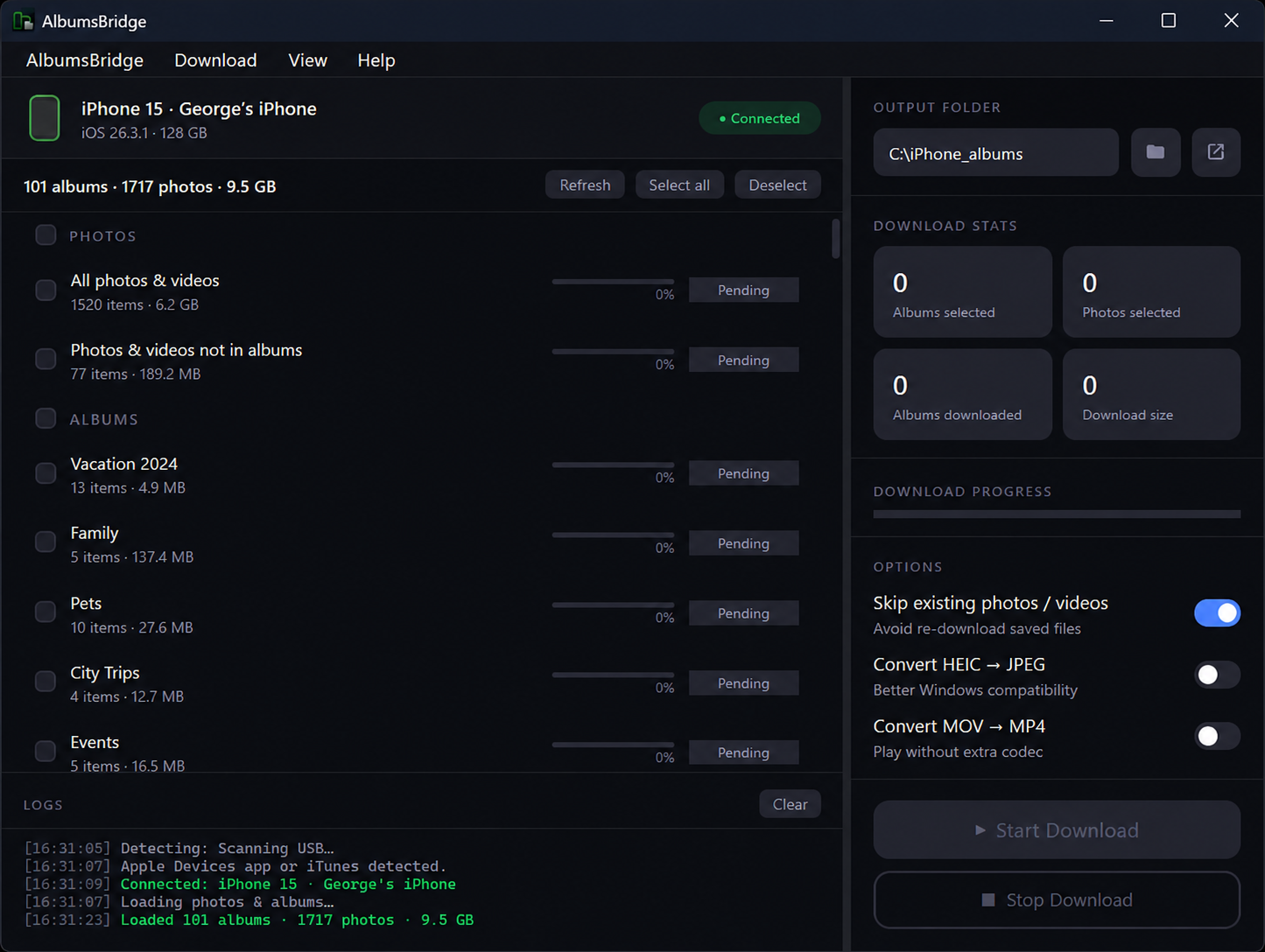
The window is split into two panels. The left panel manages your device, albums, and activity log. The right panel controls the output folder, download stats, options, and progress. Numbered callouts map to the legend below.
1Connect Your Device
AlbumsBridge detects iOS / iPadOS devices automatically over USB.
- Plug your iPhone / iPad into the PC with a data-capable USB cable.
- On the device screen, tap Trust when the "Trust This Computer?" prompt appears, then enter your passcode if asked.
- The Device Bar updates: the device icon gains a green outline, the device name appears, and the badge changes to ● Connected.
- The subtitle shows the total album count, photo count, and storage size. Albums populate the list automatically within a few seconds.
Device Bar — device detected with a Connected badge and full device summary
2Select Albums
Once connected, the left panel fills with two groups: PHOTOS (system-generated virtual sets) and ALBUMS (named collections you created in the Photos app).
PHOTOS group
| Entry | Contents |
|---|---|
| All photos & videos | Everything on the device — the full camera roll |
| Photos & videos not in albums | Items that have not been added to any named album |
ALBUMS group
Lists every named album on the device (e.g. Vacation 2024, Family, Pets, City Trips). Smart albums such as Favorites, Videos, Selfies, Screenshots, Bursts, Hidden, and Recently Deleted also appear when they contain items.
How to select
- Click the checkbox on any row to select that album. The right-panel stats update immediately.
- Use Select all to check every album, or Deselect to clear all.
- Press Ctrl+R or click Refresh to reload the list if you added photos after connecting.
Album list — PHOTOS and ALBUMS groups, each row showing name, count, size and status
Album status badges
| Badge | Meaning |
|---|---|
| Pending | Queued — waiting for earlier albums to finish |
| Downloading | Actively transferring — an inline progress bar is visible on the row |
| Done | All files in this album transferred successfully |
| Stopped | Transfer was interrupted — can be resumed |
3Choose an Output Folder
All downloaded files go into a single folder you choose. Each album is saved as its own sub-folder, mirroring the structure on your device.
- In the right panel, find the Output Folder row.
- Click the folder icon button to open the Windows folder picker.
- Navigate to your destination and confirm. The path appears in the read-only field.
- The arrow icon next to the path opens the folder in File Explorer at any time.
Output Folder row — path field with browse (folder) and open-in-Explorer (arrow) buttons
4Download Options
Three toggle switches in the right panel control how files are handled. Settings are saved automatically between sessions and cannot be changed while a download is in progress.
Options panel — Skip existing is ON by default — HEIC and MOV conversion are OFF
| Option | Default | What it does |
|---|---|---|
| Skip existing photos / videos | ON | Files that already exist in the output folder are skipped. Ideal for incremental backups — only new photos transfer each session. Disable to force a full re-download. |
| Convert HEIC → JPEG | OFF | iPhone / iPad photos are stored as HEIC. Enabling this converts them to JPEG during transfer so they open natively in all Windows apps without extra codecs. Adds conversion time and roughly doubles file size. |
| Convert MOV → MP4 | OFF | iPhone / iPad videos record as MOV. Enabling this re-encodes them to MP4 so they play in Windows Media Player without installing third-party codecs. |
5Start a Download
The ▶ Start Download button activates once at least one album is checked and an output folder is selected.
- Click ▶ Start Download (or press F5).
- AlbumsBridge validates disk space. A warning dialog appears if the drive is too full.
- Albums process in list order, one at a time. Each transitions: Pending → Downloading → Done.
- The Download Progress bar fills as files transfer. The percentage updates to one decimal place.
- The Activity Log streams live updates — file names, skips, conversion steps, and any errors.
Right panel — Download Stats, Progress, Options and action buttons
6Stop & Resume a Download
Stopping
- Click ■ Stop Download (or press F6) at any point during a transfer.
- The active album is marked Stopped. Queued albums remain Pending. Finished albums stay Done.
- Start Download becomes active again immediately so you can restart at will.
Resuming
- Click ▶ Start Download again (or press F5).
- The stopped album restarts from its beginning. If Skip existing is on, already-saved files are skipped automatically — only missing files re-transfer.
- Already-done albums are not revisited. Pending albums continue in order.
Action buttons — Start Download (left) and Stop Download (right)
License Activation
A valid license is required to use AlbumsBridge. The activation dialog opens automatically on first launch and is accessible at any time via Help → License.
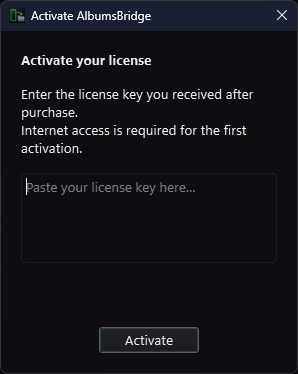
- Purchase a license from the AlbumsBridge website. The key arrives by email.
- Open Help → License in the menu bar.
- Paste the license key into the text field.
- Click Activate. AlbumsBridge validates the key online and displays a confirmation message.
- The dialog closes and the app is fully unlocked.
Menus & Settings
Menu bar — AlbumsBridge · Download · View · Help
AlbumsBridge menu
| Item | Description |
|---|---|
| Save OUTPUT FOLDER | Checkable toggle. Remembers the last chosen output folder and restores it on the next launch. |
| Notification for “Optimize Storage” check | Checkable toggle (default on). Shows the "Check if “Optimize iPhone(/iPad) Storage” is enabled" dialog on the next launch. |
| Minimize to tray Ctrl+M | Hides the window to the system tray. Downloads continue in the background. Click the tray icon to restore. |
| Exit Alt+F4 | Closes the application. |
Download menu
| Item | Description |
|---|---|
| Start download F5 | Same as clicking ▶ Start Download. |
| Stop download F6 | Same as clicking ■ Stop Download during an active transfer. |
| Refresh albums Ctrl+R | Re-queries the connected device for the current album and photo list. |
View menu
| Item | Description |
|---|---|
| Dark mode Ctrl+Shift+D | Toggles between dark (default) and light themes. Preference is saved between sessions. |
Help menu
| Item | Description |
|---|---|
| License | Opens the license activation dialog. |
| About | Shows version information and credits. |
Keyboard Shortcuts
| Shortcut | Action |
|---|---|
| F5 | Start download |
| F6 | Stop download |
| Ctrl + R | Refresh album list |
| Ctrl + M | Minimize to system tray |
| Ctrl + Shift + D | Toggle dark / light mode |
| Alt + F4 | Exit the application |
Tips & Troubleshooting
Activity Log — green lines confirm successful steps — use this first when troubleshooting
Albums not loading
Press Ctrl+R to refresh. Check the Activity Log — it pinpoints whether the failure was at device detection, trust, or album scan.
HEIC photos won't open
Enable Convert HEIC → JPEG before downloading, or install the free HEIC Image Extension from the Microsoft Store.
Incremental backups
Keep Skip existing ON and use the same output folder each session. Only photos added since the last run will transfer.
Background transfers
Use Ctrl+M to minimize to the system tray. The download continues while the window is hidden.
Insufficient disk space
The Download Stats grid shows the total size before you start. Free up space on the destination drive, or pick a drive with more room.
Red lines in the log
Red entries are individual file errors and do not stop the whole download. Review them after completion to see which files need attention.
Slow transfer speeds
Use a USB 3.x port and cable where possible. Transfer speed is typically bottlenecked by the iOS / iPadOS device's internal storage, not the cable.
License check fails
Periodic license validation requires internet access. Check your firewall or proxy settings if validation consistently fails after activation.