Blog/Guides
Why Are My iPhone Albums Missing on My PC? (And How to Get Them Back as Folders)
You organized your photos into albums for years. Then you plugged the iPhone into a Windows PC and found one folder full of numbered files. Here's what happened and how to get your albums onto the PC as real folders.
October 9, 2026 · 6 min read
What you see on the PC
You connect the iPhone with a USB cable, tap "Trust This Computer" and open it in File Explorer. You expect the albums from your Photos app. What you get is this:
- One folder called DCIM under Internal Storage.
- Inside it, numbered subfolders such as 100APPLE.
- Inside those, files named like IMG_4821.HEIC and IMG_4822.MOV.
No "City Trips". No "Events". No "Family". Every photo and video you've ever taken is there, but the organization is nowhere to be seen.
Why the albums don't show up
An album on an iPhone is not a folder. When you add a photo to an album, the photo doesn't move anywhere. The Photos app just records, in its own internal database, that this photo belongs to that album. That's why one photo can sit in three albums at once without taking up three times the space.
Over USB, the iPhone presents itself to Windows like a digital camera. Windows is handed the camera storage, the DCIM folder, and nothing else. The database that knows which photo belongs to which album isn't part of what File Explorer reads. So Windows shows you the files and has no idea the albums exist.
Your albums aren't lost
This is worth saying plainly, because the first reaction is often panic: connecting the phone to a PC doesn't delete or change anything. Unlock the iPhone, open Photos and your albums are exactly where you left them. The problem is only on the Windows side, and only in what Windows is able to see.
What doesn't bring them back
The usual free routes all move your photos. None of them move your albums.
- Copying from File Explorer. You get the contents of DCIM: every file, in numbered folders, with no album names.
- Importing with the Windows Photos app. It reads the same camera storage as File Explorer and sorts the import by date, not by album.
- iCloud for Windows. It downloads your iCloud Photos library to a single location, Pictures\iCloud Photos\Photos. Your albums stay in iCloud; they don't become folders on the PC.
We compare these methods in more detail in How to Transfer iPhone Photos to a Windows PC.
Rebuilding the folders by hand
If you have two or three small albums, you can do it manually for free:
- Copy everything from DCIM to your PC.
- Create a folder on the PC for each album.
- Open the album on the iPhone, then find each of its photos among the copied files and move it into the matching folder.
It works, but it doesn't scale. The file names tell you nothing about the album, so you're matching photos by eye. With 20 albums and a few thousand photos, that's a weekend, and you'd have to repeat it every time you add new photos.
Getting every album as a folder with AlbumsBridge
AlbumsBridge is a Windows app we built for exactly this gap. It connects to the iPhone or iPad over USB, reads the album list from the Photos app and saves each album as its own named folder on your PC. It works offline, with no iCloud and no upload.
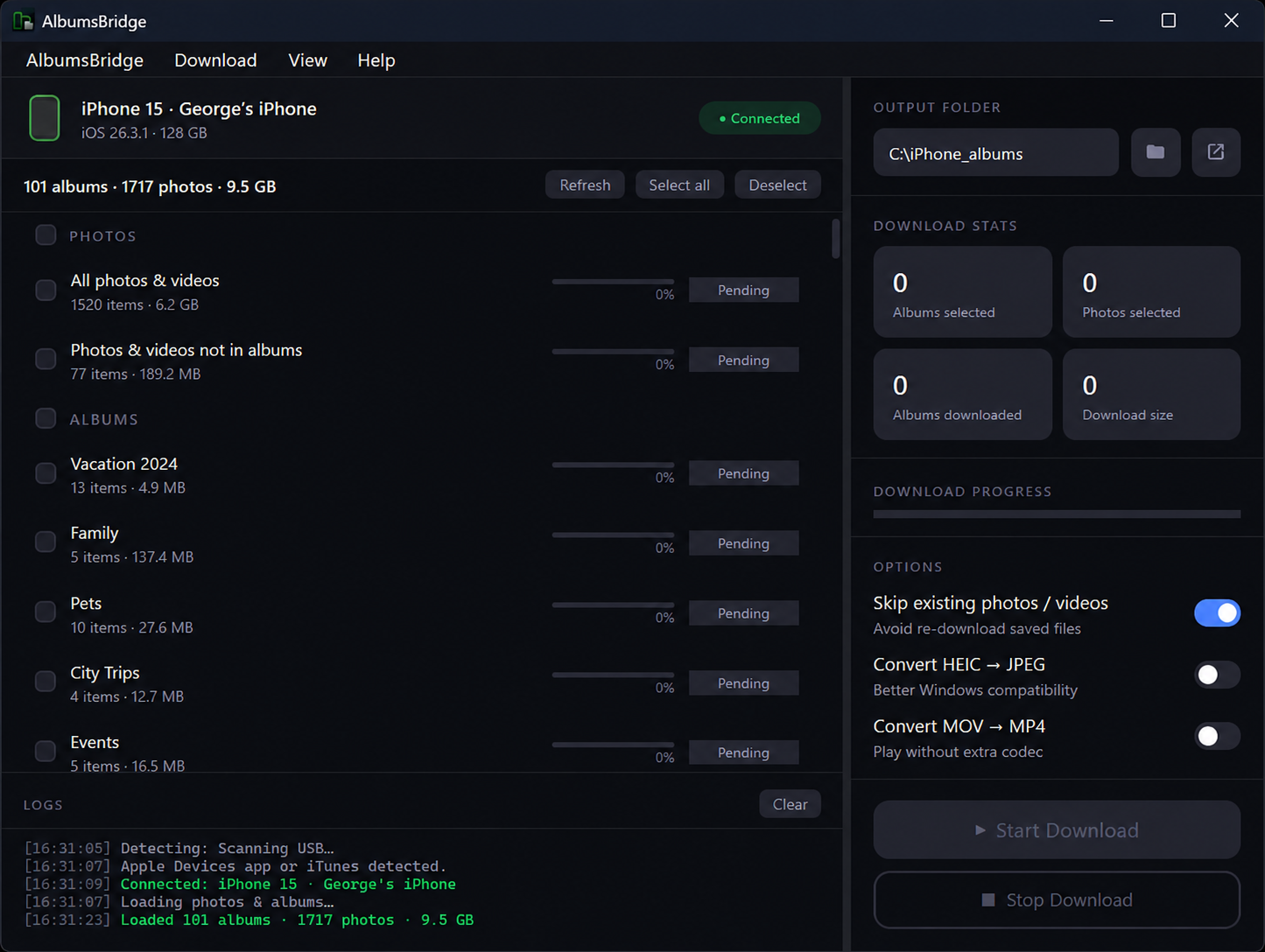
- Make sure Apple's Apple Devices app is installed on your PC. Windows needs it to talk to an iPhone or iPad over USB.
- Download and install AlbumsBridge on your Windows 10 or 11 PC.
- Connect the iPhone or iPad with a USB cable and tap "Trust" on the device if asked.
- Open AlbumsBridge. The left panel fills with your albums, the ones you named in the Photos app, such as "City Trips", "Events", "Family", "Pets" and "Vacation 2024".
- Tick the albums you want, or click Select all to take every album in one go.
- Choose an output folder on your PC.
- Click Start Download. Each album is saved as its own folder, named after the album.
When it finishes, File Explorer shows what you expected to see in the first place. With an output folder called "iPhone Albums", that looks like this:
- iPhone Albums\City Trips
- iPhone Albums\Events
- iPhone Albums\Family
- iPhone Albums\Pets
- iPhone Albums\Vacation 2024
Options worth knowing about
- Skip existing is on by default. Run the export again next month into the same folder and only the new photos are copied.
- Convert HEIC → JPEG and Convert MOV → MP4 save your photos and videos in formats that open in any Windows app.
- Live Photos are exported as both the still photo and its motion clip, side by side in the album's folder.
See your albums as folders
Connect your iPhone or iPad, pick your albums and export each one to its own folder on your PC, offline, no subscription.
Windows may show a SmartScreen warning.
Click "More info" → "Run anyway" to install.
Two things to check first
Is "Optimize iPhone Storage" turned on?
If you use iCloud Photos with Optimize iPhone Storage, the phone may keep only small versions of some photos and leave the full originals in iCloud. Those originals can't be copied over a USB cable. AlbumsBridge tells you when this happens: the log reports files as "not accessible on device" and skips them.
To get everything, switch to Download and Keep Originals in Settings → Photos, keep the phone on Wi-Fi and power until the download finishes, then run the export again. With Skip existing on, only the missing files are fetched. If you don't see the Optimize Storage option at all, iCloud Photos is off and your photos are already on the phone at full size.
How many albums do you have?
The free trial lasts 7 days and covers 3 albums in total, which is enough to see your own albums arrive as folders. A license removes the limit.
Frequently asked questions
Did connecting my iPhone to the PC delete my albums?
No. Your albums are still in the Photos app on the iPhone, exactly as you left them. Windows simply can't see them, because File Explorer only shows the raw DCIM storage folder, not the album list the Photos app keeps on top of it.
Why does File Explorer only show a DCIM folder?
Over a USB cable, an iPhone presents itself to Windows like a digital camera. Windows gets the camera storage folder, DCIM, with photos in numbered subfolders. The albums you created exist only in the Photos app's own database, which File Explorer doesn't read.
Can I see which album a photo belongs to from the files in DCIM?
No. The files in DCIM carry names like IMG_4821.HEIC and nothing in the name or the folder tells you which album they belong to. A photo can also be in several albums at once while existing as a single file on the phone.
Does iCloud for Windows download my albums as folders?
No. Apple's iCloud for Windows guide gives a single location for downloaded photos and videos, Pictures\iCloud Photos\Photos. Your albums stay in your iCloud Photos library; they aren't turned into separate folders on the PC.
Will exporting albums with AlbumsBridge remove the photos from my iPhone?
No. AlbumsBridge copies your photos and videos to the PC. Nothing is deleted or changed on the iPhone or iPad.
Some photos were skipped as "not accessible on device". Why?
If iCloud Photos is on with Optimize iPhone Storage, the phone may hold only small versions of some photos and keep the full originals in iCloud. Those originals can't be copied over USB. Switch to Download and Keep Originals in Settings, let the phone finish downloading on Wi-Fi, then run the export again; with Skip existing on, only the missing files are fetched.
The bottom line
Your albums didn't disappear. Windows just can't see them, because an iPhone album is a list inside the Photos app and not a folder on the phone's storage. Free tools copy the photos and leave that list behind. If you want the albums themselves on your PC, one folder each, you need something that reads them, and that's the one job AlbumsBridge does.
Try AlbumsBridge free
7-day trial, no credit card required. Export up to 3 albums to see exactly how it organizes your photos. If you buy, a 30-day money-back guarantee covers you.
Windows may show a SmartScreen warning.
Click "More info" → "Run anyway" to install.